Online Package Manager/es
Acerca de
Online Package Manager(OPM) es una utilidad que automatiza el proceso de instalación, actualización y configuración de los paquetes de Lazarus. Los paquetes se almacenan en el repositorio principal como fichero .zip (ver columna de repositorio), junto con su correspondiente fichero JSON. El fichero JSON contiene toda la información necesaria sobre los paquetes. Realizada la petición los paquetes son descargados/extraidos/compilados/instalados en el IDE. También es posible actualizar un paquete previamente instalado si hay disponible una versión más actualizada en la página web del mantenedor (ver columna update). Hay además disponible una versión del Repositorio de Paquetes de Lazarus en el siguiente enlace: http://packages.lazarus-ide.org/.
 <span style="color:red">Please note:</span>
 OPM lee la descripción del paquete a partir del fichero lpk. I can understand that the description of many packages is very minimalistic or even non-existent, but there is nothing I can do about it.
 It's not OK to modify package description or any other property for that matter, without the consent of the package developer. More over testing each and every package, then write a detailed
 description is not realistic.
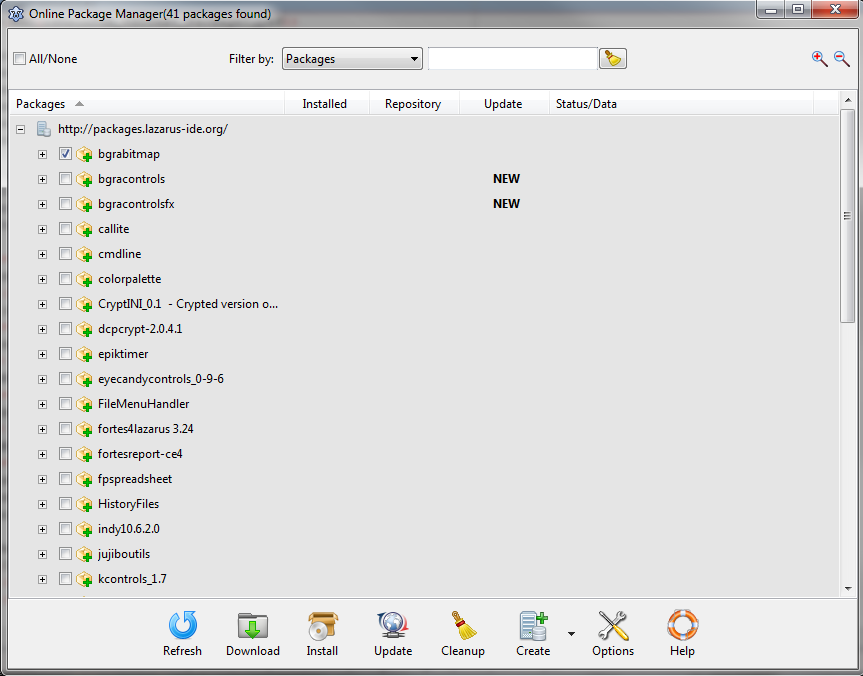
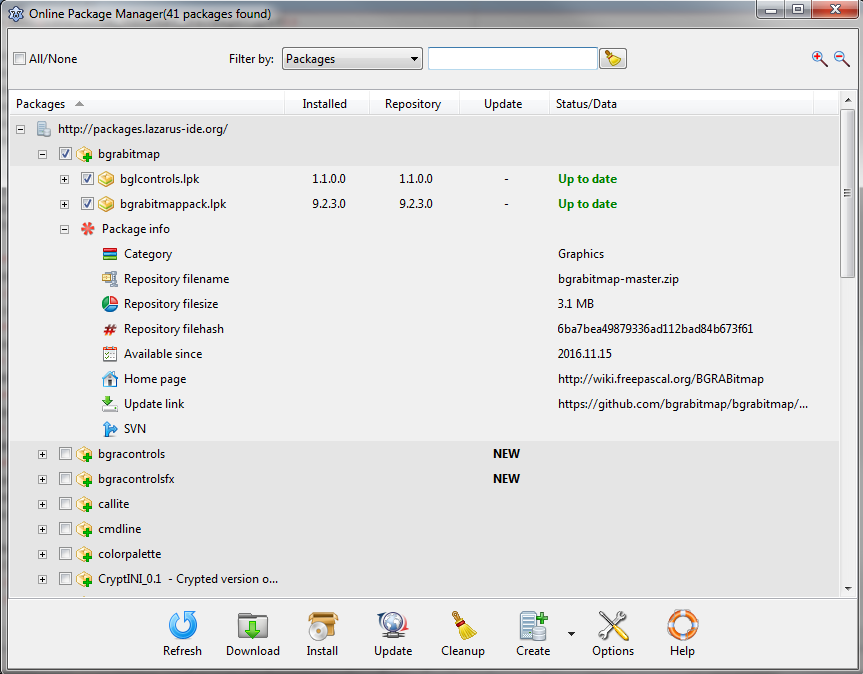
Pantallazos
Licencia
Descargas
Online Package Manager (OPM) forma parte de las fuentes de Lazarus. Se encuentra en el directorio ($LazarusDir)/components/onlinepackagemanager.
Requerimientos del sistema / Dependencias
- FPC 3.0.0 o superior.
- Lazarus 1.8 o superior.
- Puedes descargar una versión más antigua para las series 1.6: OPM 1.6
- Estas versiones están disponibles a fecha de escritura de esta actualización.
- Testeado en los siguientes widgeset: win32/64, gtk2, carbon, qt(win)
- El gestor de paquetes no depende de otros paquetes externos.
Installation
In Lazarus "Install/Uninstall Packages" window select "OnlinePackageManager" from the available packages, click "Install selection" and then rebuild the IDE.
Support page
http://forum.lazarus.freepascal.org/index.php/topic,34297.0.html
Using the package manager
Getting started
Go to Lazarus Menu-->Package-->Online Package Manager(Shortcut key: [Ctrl] + [Alt] + O). On startup the package manager will automatically download a list with available repository packages, the list is displayed in a tree(see screenshots above).
Filter the tree/Locate a package
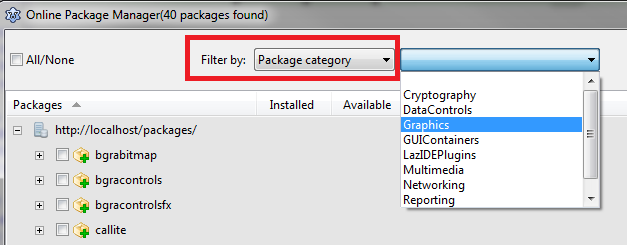
You can filter the package list by:
- Packagename
- Package file(.lpk)-->a repository package can contain multiple lpk files
- Package category
- Package status
- Version
- Description
- Author
- Lazarus compatibility
- FPC compatibility
- Supported widget sets
- Packagetype
- Dependencies
- License
Operation with packages

Refresh package list
Press the "Refresh" button to update the package list.
Download package
Check one or more package then press the "Download" button. This will download/extract the packages to a preselected directory. Nothing gets installed. Useful when you want to install the packages manually or study their sources without installing.
Install a package
Check one or more package then press the "Install" button. The package manager will automatically download/extract/compile/install the selected packages(from the main repository), then rebuild the IDE if necessary(Designtime/Designtime_and_runtime packages). Confirm the rebuild by clicking the "Yes" button. Please note: The compile feature is only available in Lazarus 1.7+.
Update a package
Check one or more package then press the "Update" button. The package manager will update the selected packages from the maintainer's homepage(if available). The package must be installed first, a direct update although is possible, it's not allowed to prevent unresolved dependency error. Please note: downloading/installing packages from external link is not without a risk. Only update the package if you trust the package maintainer.
Difference between download/install/update
Download/Install --> Operations between you and the main repository.
Update --> Operations between you and the package maintainers.
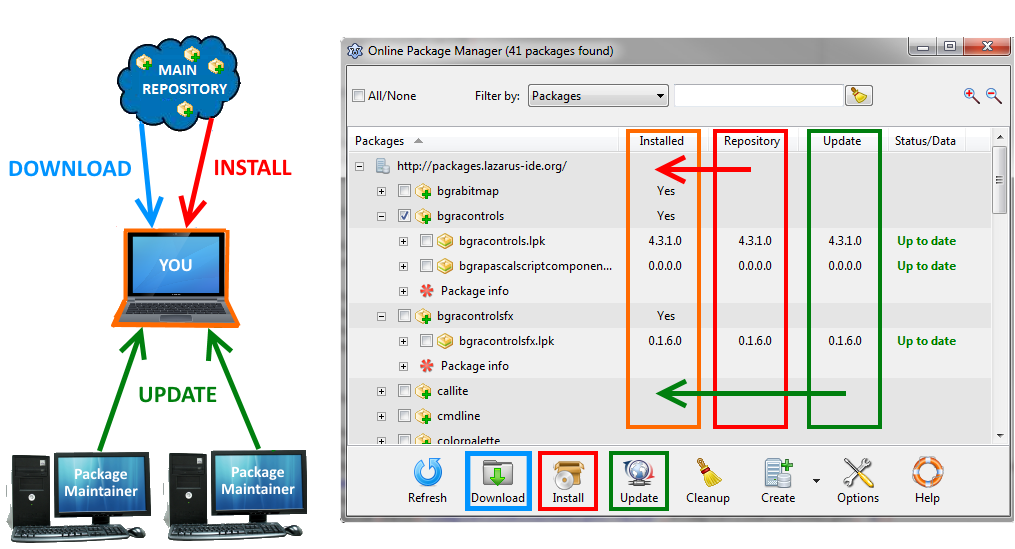
Video link: Difference between download/install/update
Cleanup local repository
This operation will delete all non-installed packages/archives from the local repository. To cleanup the local repository press the "Cleanup" button.
Create
This section is for package maintainers. First you must go to Options-->Profiles and select package maintainer.
Create repository package
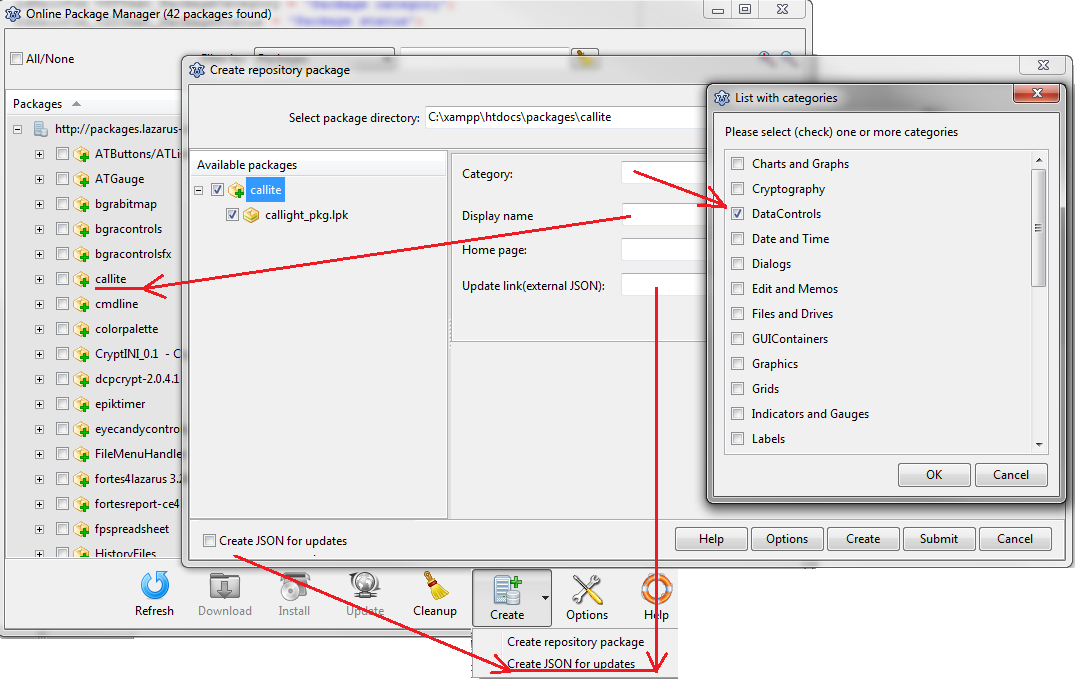
To create a repository package press "Create repository package" menu item, then:
- select the package main directory(package manager will recursively search for all package files inside the folder)
- select the repository package(root node)
- choose category(obligatory)
- type display name(optional)
- home page(optional)
- update link(optional, for more details see "Create JSON for updates"1" below)
- create JSON for updates(optional), has the same functionality as "Create JSON for updates"2" dialog. It was also added here to speed up the process.
- check each package you wish to include, adjust package info if necessary(lazarus/fpc compatibility, supported widgetset, etc)
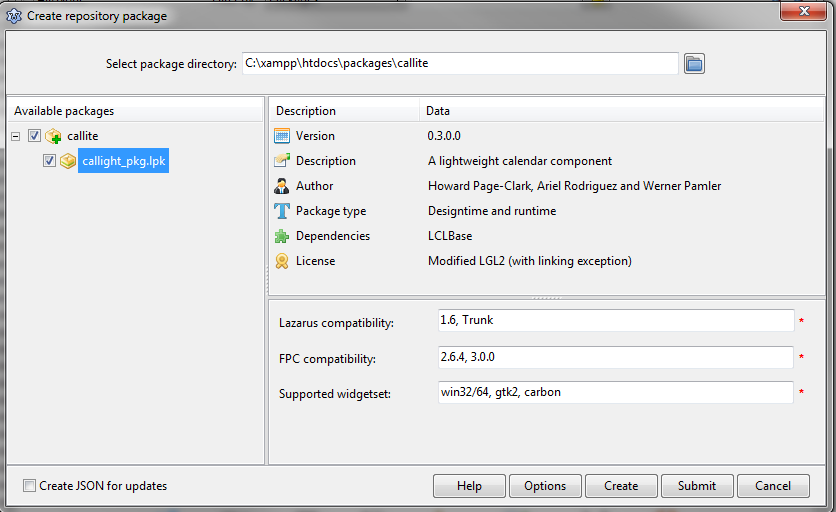
- press the create button, if all goes well you should get a zip and a json file. Upload somewhere the files and send the link to getmem1@gmail.com or
- press the submit button, the files are directly uploaded to a remote server.
Every package will be accepted after a short check(malware, license, etc). Multiple versions of the same package is also allowed.
Create JSON for updates
To allow the user to update the package directly form your webpage, follow this steps:
- Make sure your package is already in the main repository(see previous section)
- You can download and use the Online Package Manager External Update json Editor
- or via OnlinePackageManager:
- Check the package, press the "Create JSON for upates" menu item then create the JSON.
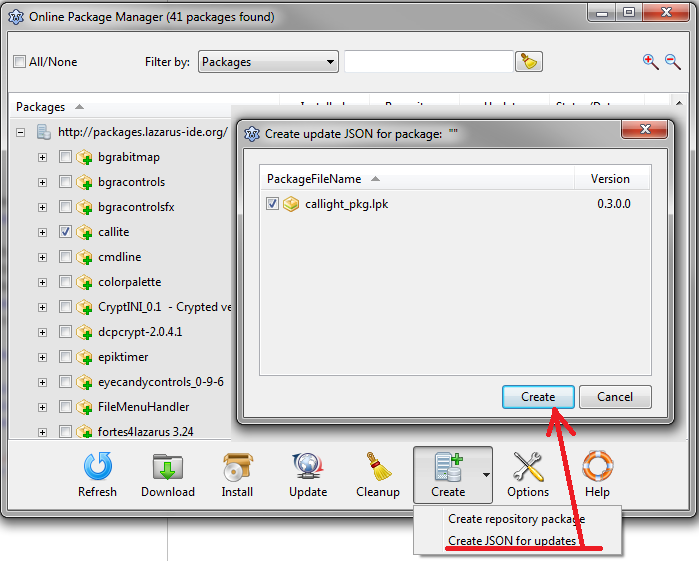
- Edit the JSON, upload to your webpage, then send me the link.
The JSON will look like this:
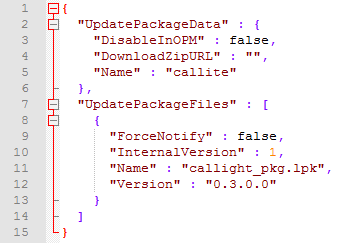
Editable items in the JSON:
"DownloadZipURL" --> Link to your new, updated package
"DisableInOPM" --> If you want to temporary disable your package, set this boolean to true. It's useful for maintenance, the package will be grayed out in the tree. The user cannot download/install/update the package.
"Version"/"ForceNotify"/"InternalVersion" --> To trigger an update message on the users computer, you can either:
- Increase the "Version" number. Useful when you want to release a new version of the package.
- Set "ForceNotify" to true. Useful after a minor change in your source, that does not require a version change or in case of trunk version. To prevent continous error messages, "ForceNotify" must be used in combination with "InternalVersion". After the user updates the package, OPM locally stores the "InternalVersion" value. If you want to trigger a new message, increase "InternalVersion" with one. If "ForceNotify" is true, "Version" is always ignored.
The most common scenario is this:
- Generate the JSON
- Modify "DownloadZipURL"
- Increase version number when necessary.
Please note: After you edited the JSON the changes are not immediately visible in the tree. Usually it takes 1-2 min. It also depends on the users setting(Options-->General-->Check for package updates).
Options
To display the options dialog press the "Options" button.
Create a private repository
In order to create a private repository please do the following:
1. First make sure profile "Package maintainer" is enabled in Options-->Profiles, then open the private repository form(see screenshot below)
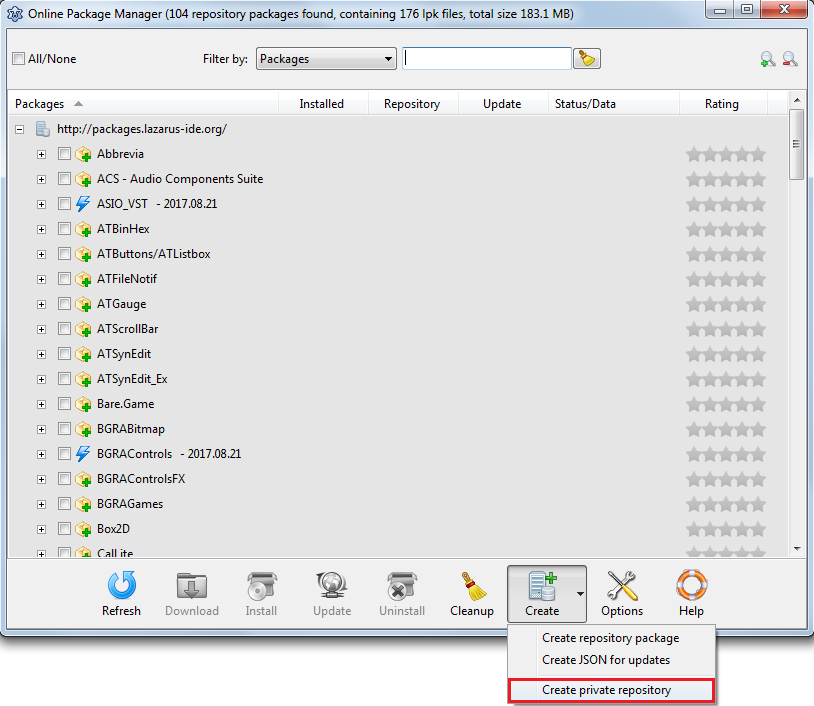
2. Press the "Create" button. Enter repository Name, Address(optional), Description(optional). Save the repository to an empty folder
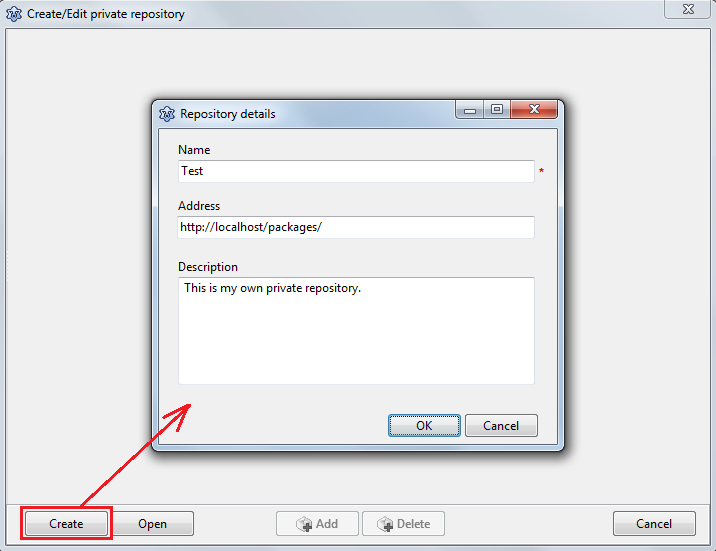
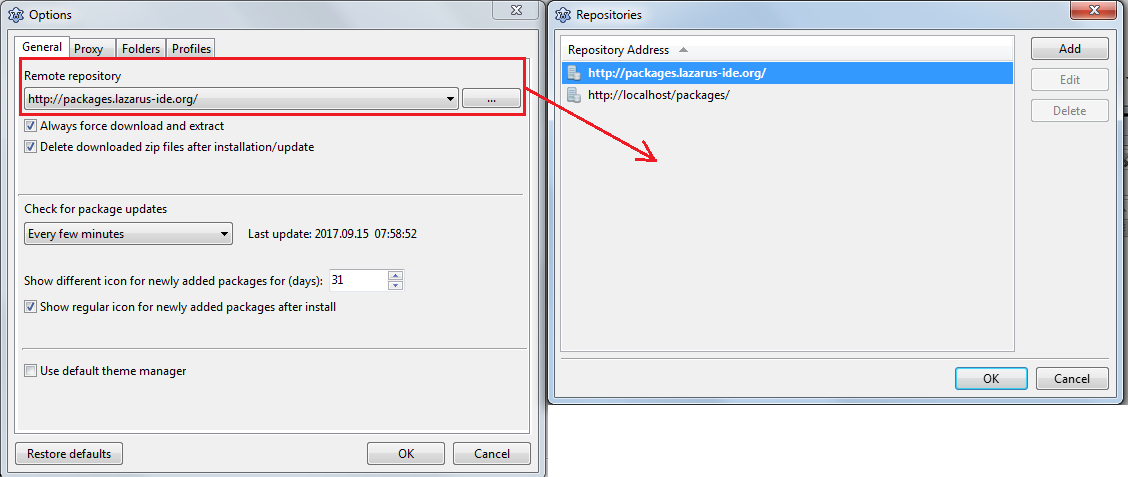
- If filled, the repository address(in this case http://localhost/packages/) is automatically added to available repository list(Options form)
3. Start to add/delete packages. You have two choices:
a. Create a new package via http://wiki.freepascal.org/Online_Package_Manager#Create_repository_package
b. Add a previously saved package
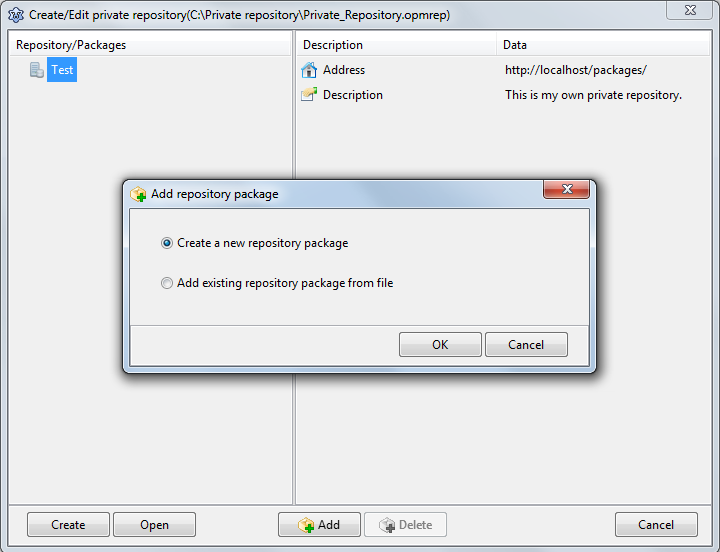
4.You can also open a previously saved repository. The last repository is automatically opened on startup.
5.Upload the files(packagelist.json, *.zip) to your local or remote server.
6.Make sure the server is running, the change "Remote repository" in Options-->General
From the Free Pascal wiki, page "Online Package Manager/es", as it stood on 2019-10-12 after a change by FTurtle, out of the wiki's dump of 2024-05-26. Copyright stays with the author who wrote it, according to the old wiki's Licensing page. If you have concerns about this material, message the admin.