BGRABitmap tutorial 12/es
Deutsch · English · Español · Français
Esta tutoría muestra como usar funciones de texto.
Crear un nuevo proyecto
Crea un nuevo proyecto y añade referencia a BGRABitmap, de la misma forma que enla primer tutoríal.
Texto simple
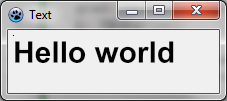
Puedes dibujar un texto simple como este :
procedure TForm1.FormPaint(Sender: TObject);
var
  image: TBGRABitmap;
  c: TBGRAPixel;
begin
  image := TBGRABitmap.Create(ClientWidth,ClientHeight, ColorToBGRA(ColorToRGB(clBtnFace)) );
  c := ColorToBGRA(ColorToRGB(clBtnText)); //devuelve el color de texto predeterminado

  image.FontHeight := 30;
  image.FontAntialias := true;
  image.FontStyle := [fsBold];
  image.TextOut(ClientWidth-5,5,'Hello world',c,);
  image.SetPixel(5,5,c);

  image.Draw(Canvas,0,0,True);
  image.free;
end;
Aquí el tamaño de la fuente está establecido a 30 píxeles, con antiafilado. Usar antiafilado de fuentes es mas lento pero es mas hermoso.
La esquina superior izquierda del texto está en (5,5). Este origen es mostrado con SetPixel.
Usar alineamiento
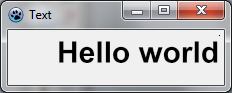
Simplemente reemplaza las lineas TextOut y SetPixel con :
  image.TextOut(ClientWidth-5,5,'Hello world',c,taRightJustify);
  image.SetPixel(ClientWidth-5,5,c);
Ahora el origen está en el lado derecho de la forma, y el texto está alineado a la derecha.
Texto rotado
Es también simple dibujar texto rotado. Para hacer esto usa TextOutAngle o determina la propiedad FontOrientation :
  image.TextOutAngle(30,5,-450,'Hello world',c, taLeftJustify);
  image.SetPixel(30,5,c);
El ángulo se expresa en décimas de grados y el valor positivo significa que va en sentido antihorario.
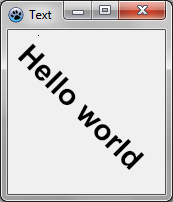
Fíjate donde está el origen del texto (en el píxel agregado).
Texto ajustado
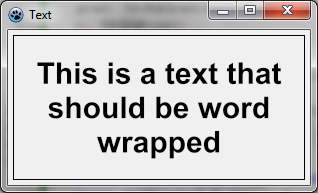
Esta es una forma fácil para usar TextRect :
  image.TextRect(rect(5,5,ClientWidth-5,ClientHeight-5),'This is a text that should be word wrapped',taCenter,tlCenter,c);
  image.Rectangle(rect(5,5,ClientWidth-5,ClientHeight-5),c,dmSet);
Los parámetros son :
- el rectángulo delimitador
- el texto
- alineación horizontal
- alineación vertical
- color
Texto con sombra
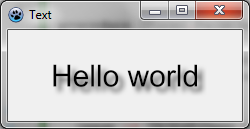
Puedes hacer un texto sombreado con un efecto de desenfoque :
var
  image,txt: TBGRABitmap;
  grad: TBGRAGradientScanner;
  c: TBGRAPixel;
begin
  image := TBGRABitmap.Create(ClientWidth,ClientHeight, ColorToBGRA(ColorToRGB(clBtnFace)) );
  c := ColorToBGRA(ColorToRGB(clBtnText));

  txt := TextShadow(ClientWidth,ClientHeight,'Hello world',30,c,BGRABlack,5,5,5);
  image.PutImage(0,0,txt,dmDrawWithTransparency);
  txt.Free;

  image.Draw(Canvas,0,0,True);
  image.free;
end;
El procedimiento TextShadow crea un bitmap que contiene el texto con una sombra. Los parámetros son :
- El tamaño del bitmap
- El texto
- Alto de la Fuente
- Color de la Fuente
- Color de la sombra
- Desplazamiento de la sombra y tamaño del desenfoque
No olvides liberar el bitmap luego de utilizarlo.
Texto con gradiente
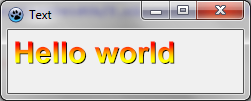
Como otras funciones de dibujo, puedes proveer de un gradiente o textura para rellenar el texto con el. Aquí hay un ejemplo :
uses BGRAGradientScanner;

var
  image: TBGRABitmap;
  grad: TBGRAGradientScanner;
begin
  image := TBGRABitmap.Create(ClientWidth,ClientHeight, ColorToBGRA(ColorToRGB(clBtnFace)) );

  grad := TBGRAGradientScanner.Create(BGRA(255,255,0),BGRA(255,0,0),gtLinear,PointF(0,0),PointF(0,35),True,True);
  image.FontHeight := 30;
  image.FontAntialias := true;
  image.FontStyle := [fsBold];
  image.TextOut(6,6,'Hello world',BGRABlack);  //dibuja un borde negro
  image.TextOut(5,5,'Hello world',grad);       //dibuja texto degradado
  grad.free;

  image.Draw(Canvas,0,0,True);
  image.free;
end;
Primero se crea un gradiente horizontal, con color amarillo y rojo. Este se usa como textura.
Tutoría anterior (combinando transformaciones)
From the Free Pascal wiki, page "BGRABitmap tutorial 12/es", as it stood on 2020-02-09 after a change by Trev, out of the wiki's dump of 2024-05-26. Copyright stays with the author who wrote it, according to the old wiki's Licensing page. If you have concerns about this material, message the admin.